


Table of contents
Basecamp Setup
Basecamp connects to WorkSights through OAuth. Once connected, Basecamp delivers activity to WorkSights via webhooks for all mapped users.
Only Admins, Owners, and Executives can initiate this connection.
For an overview of how Basecamp activity appears in WorkSights, see Basecamp Integration Overview.
Connecting Basecamp
Step 1: Start the Connection
- Go to Services in the top navigation
- Find Basecamp in the list
- Click Connect Basecamp
This opens Basecamp's OAuth authorization screen.
Step 2: Authorize WorkSights in Basecamp
You will be redirected to Basecamp's OAuth authorization screen. Sign into the Basecamp account you want to connect and approve the requested permissions.

Once authorization is complete, WorkSights registers the webhook and prepares the scheduled ingestion process automatically.
Step 3: User Mapping
WorkSights imports your Basecamp users and matches them to WorkSights profiles by email. Open the Users tab to review mappings. For any user that did not map automatically, select the correct WorkSights profile from the dropdown.
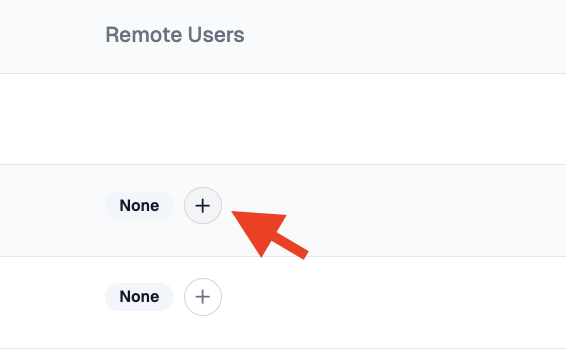
Only mapped users generate scored activity in WorkSights. External collaborators whose email matches a known client contact will appear as client-authored activity on ClientSights.
What Happens Next
Once connected and users are mapped, WorkSights begins receiving Basecamp activity for to-dos, messages, comments, and schedule entries. Activity is captured in real time and processed into the timeline in batches roughly every 20 minutes.
No historical data is imported. Only activity that occurs after the connection is established will appear.
If you reconnect the integration, the webhook URL changes. WorkSights re-registers it automatically, but allow a few minutes for the new webhook to become active.
User mappings and connection settings can be reviewed and updated at any time from the integration page.