


Table of contents
Monday.com Setup
Monday.com can be connected from the Services section in WorkSights. Once connected, Monday.com events begin flowing into WorkSights and appear as structured activity on the timeline.
WorkSights supports multiple Monday.com accounts. Each account is treated as a separate connection and more than one can be added if your organization uses several Monday.com environments.
For an overview of how Monday.com activity appears in WorkSights, see Monday.com Overview.
Connecting Monday.com
Step 1: Start the Connection
- Go to Services in the top navigation
- Find Monday.com in the list
- Click Connect Monday.com
Only Executives and Admins can initiate Monday.com connections. To connect more than one account, use the Add Additional option after the first connection is complete.
Step 2: Authorize WorkSights in Monday.com
You will be redirected to Monday.com to approve the required permissions. Monday.com requires the app to be installed into your account before granting permissions. If authorization fails with an Invalid scope or App not installed error, this step needs to complete first; simply retry Connect and the install will run automatically.
WorkSights requests access to read your profile information, read user profile details for mapping, read board data on a per-board basis, and create and manage webhooks on your boards.
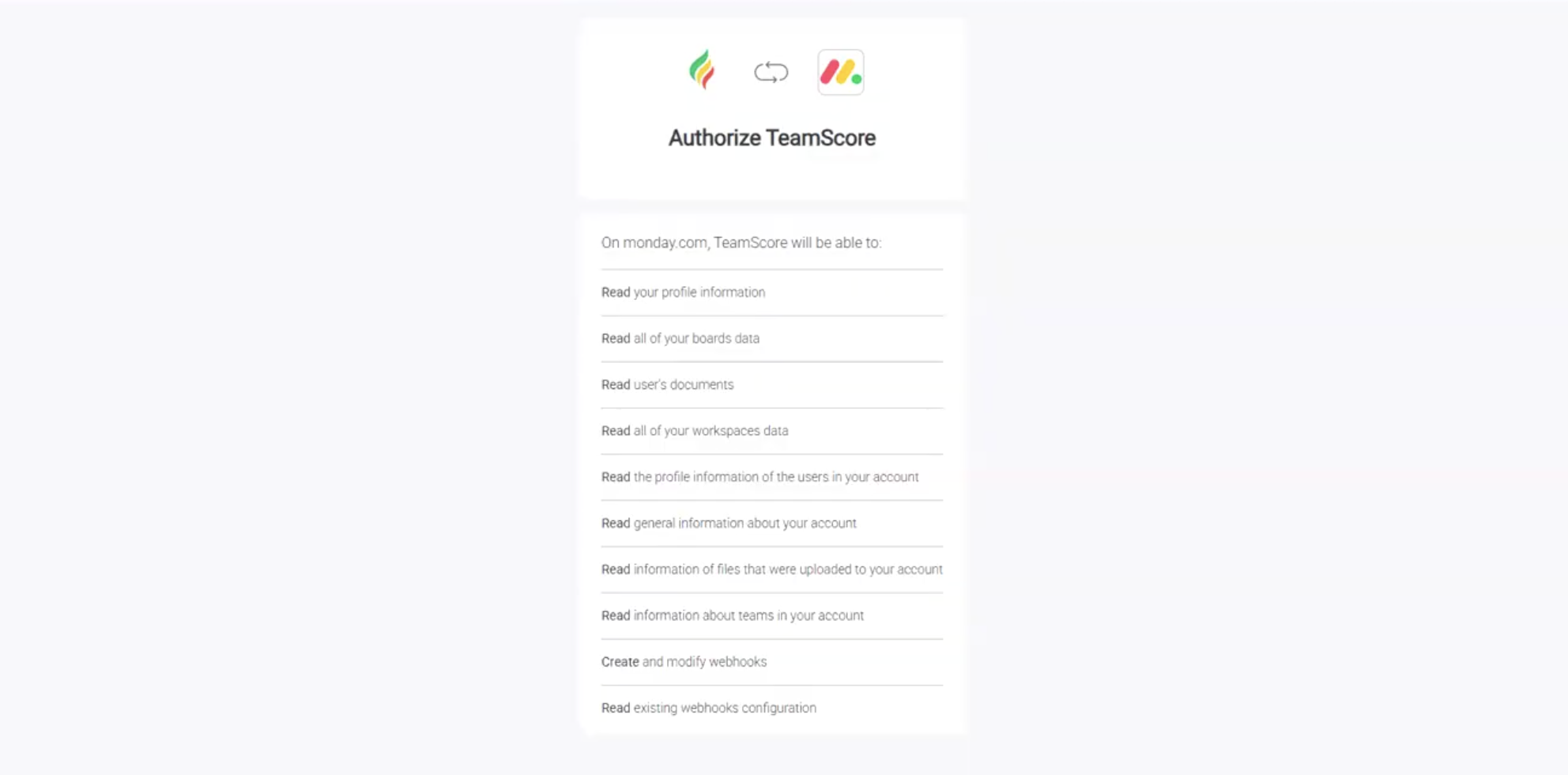
Approve the permissions to complete authorization.
Step 3: Webhook Registration
Once authorized, WorkSights automatically registers webhooks on every active board in your workspace. This happens in the background and may take a few minutes for workspaces with many boards. Registration runs in batches rather than all at once.
As new boards are created after the initial connection, WorkSights picks them up and registers webhooks during the next daily sync. You can also trigger an immediate registration sweep by reconnecting the integration from the integration page.
Step 4: User Mapping
WorkSights imports Monday.com users and matches them to WorkSights users by email.
Open the Users tab to review mappings. For any user that did not map automatically, select the correct WorkSights profile from the dropdown.
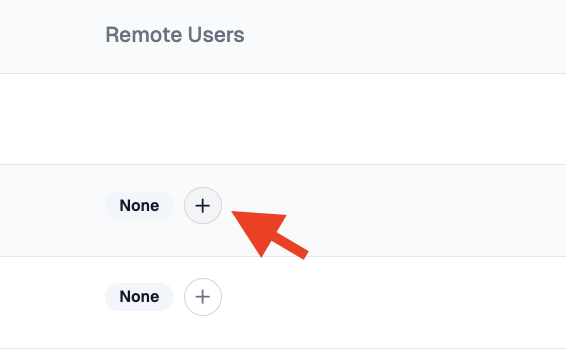
Only mapped users generate scoped activity in WorkSights. Unmapped guests whose email matches a known client contact will still appear as client-authored activity on ClientSights.
What Happens Next
Once connected and boards are registered, WorkSights begins receiving Monday.com activity in real time as your team creates and updates items, adds subitems, changes statuses, and posts updates.
Monday.com does not backfill historical data on connect. Only activity that occurs after each board's webhook is registered will appear.
New activity is captured immediately but processed into the timeline in batches roughly every 20 minutes.
User mappings and connection settings can be reviewed and updated at any time from the integration page.