


Table of contents
Personal Settings
Personal Settings is your full profile in WorkSights: where you manage everything from your identity and timezone to your schedule, connected services, and notification preferences. It is also where you set your individual AI Context, giving WorkSights the context it needs to generate accurate findings about you.
You can open Personal Settings from the user menu in the top right corner by clicking My Profile, or from Settings in the top navigation, then select Personal. Managers and Executives can also open any team member's profile by clicking their name in the Team list.
Overview Tab
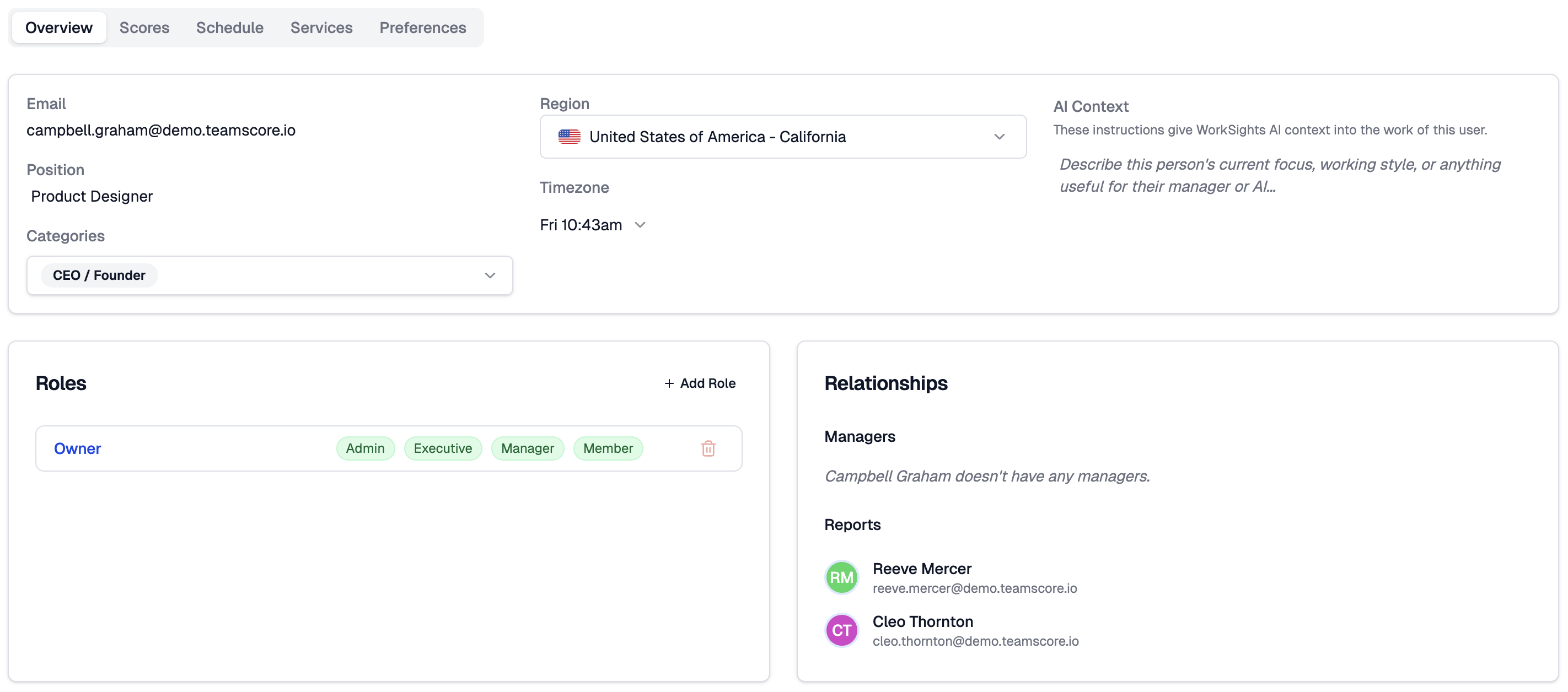
The Overview tab is the foundation of how WorkSights understands you. It brings together your identity, location settings, categories, roles, and reporting relationships.
- Email - synced automatically from Google Workspace or Microsoft 365. To change it, update it in your directory and WorkSights will reflect it automatically.
- Position - your title or role within the organisation. You can edit this field directly.
- Categories - the functional role category you are assigned to, such as CEO / Founder or Account Executive. Categories determine which Observers watch your activity and how WorkSights contextualises your work in reports and Insights. You can have more than one category assigned.
- Region - determines which public holidays apply to you and how WorkSights recognises your working days. Keeping this accurate ensures your activity estimates reflect your actual local calendar.
- Timezone - tells WorkSights how to translate activity timestamps from connected services into your local time. Choose a city-based timezone from the dropdown to ensure automatic daylight savings adjustments. For distributed teams, an incorrect timezone can shift an entire day's activity into the wrong date.
- AI Context - a plain-language description of your current focus, working style, and responsibilities. This is what WorkSights uses to interpret your activity intelligently rather than reading raw data in isolation. Describe what you are working on, what your role demands, and anything that would help a manager or the AI understand your day accurately. See the AI Context guide for more on what to write.
Roles
The Roles panel shows the permissions assigned to you for this account: Member, Manager, Executive, Admin, or any custom roles. Admins and Executives can add or remove roles here.
Relationships
The Relationships panel shows your manager and the people who report directly to you. Keeping these accurate ensures that WorkSights reports and findings reach the right people and are scoped correctly. For more complex structures, see the Assign Manager Relationships guide.
Scores Tab
The Scores tab shows your personal activity estimate history in a bar chart, defaulting to the last 28 days. Each bar represents one day and is colour-coded based on your activity level for that day.
Switch between Last 14 Days, Last 28 Days, or a custom date range using Change Date Range at the top right.
- Red - low activity, or limited data received from connected services that day
- Yellow - below typical activity levels but present
- Green - activity in line with a normal working day
- Blue - above typical activity levels
- Purple - significantly above typical activity levels
- Black - activity recorded on a non-work day
- Palm tree - recognised non-work day, holiday, or scheduled day off
- Hourglass - estimate still being calculated
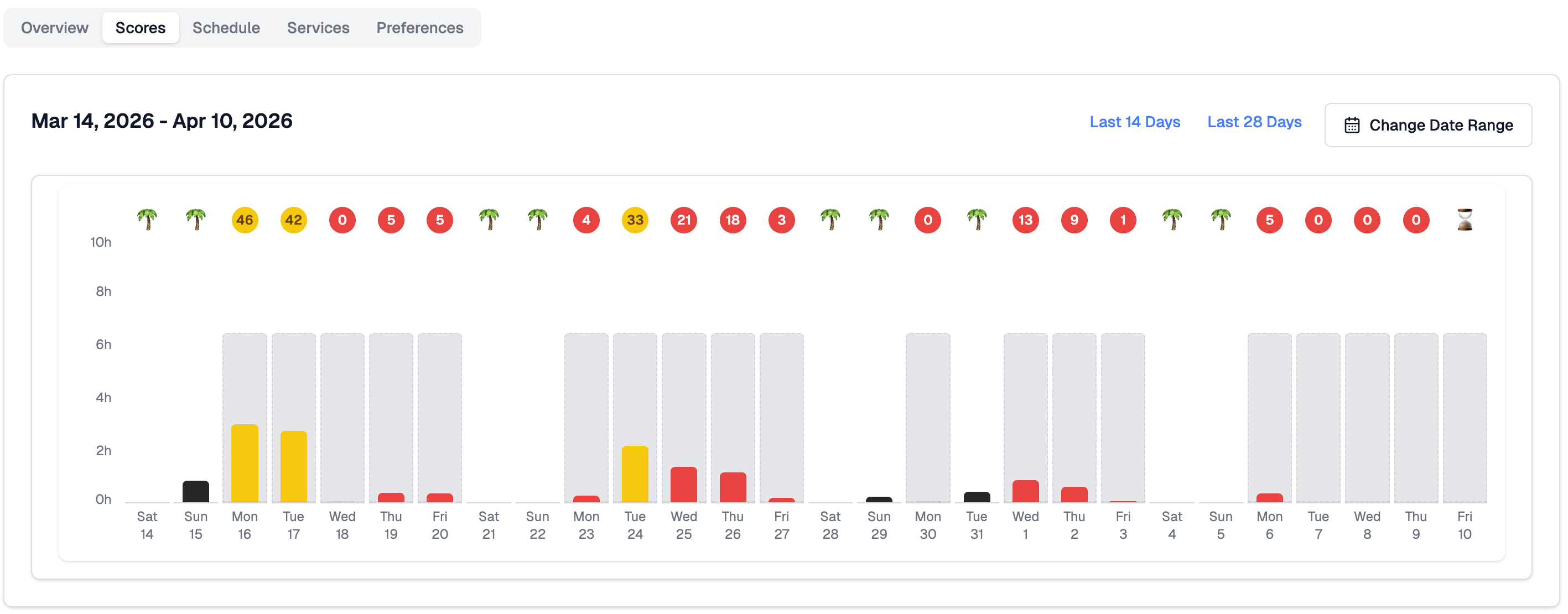
A lower estimate does not always mean less work was done. It can also mean WorkSights did not receive complete data from your connected services that day. If activity consistently looks lower than expected, check your connected services in the Services tab.
Schedule Tab
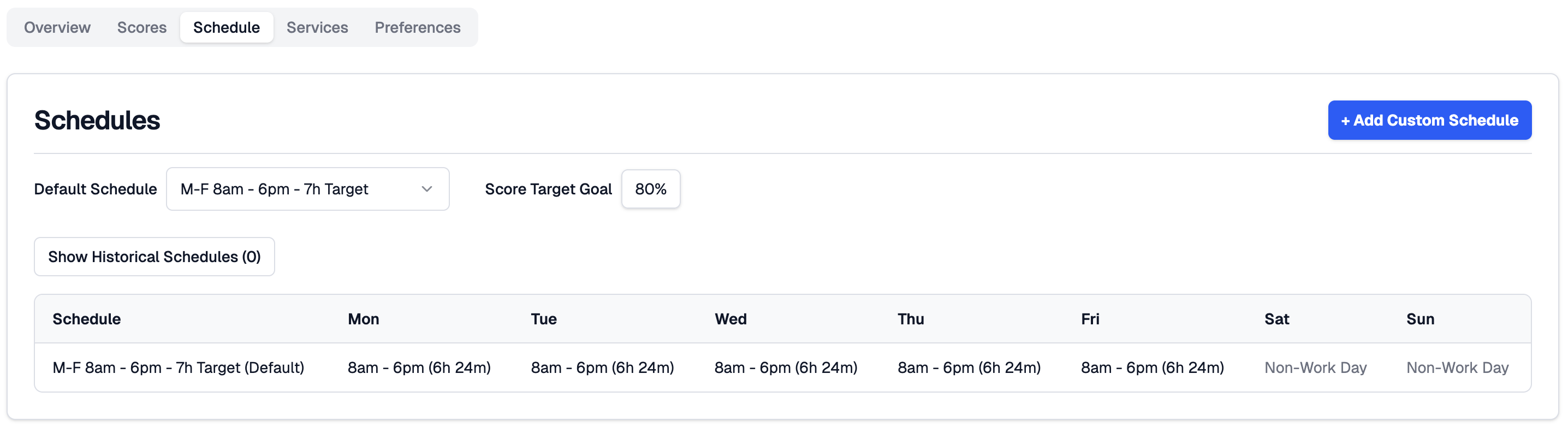
The Schedule tab defines when your workdays occur and how many hours count as a full day in WorkSights. These settings are what WorkSights uses to calculate your activity estimate relative to your actual working pattern.
Your Default Schedule is shown at the top, along with your Score Target Goal: the percentage of scheduled hours used as the baseline for your daily estimate. The default is 80%, which accounts for breaks, context switching, and offline work.
The schedule table shows each day of the week with its configured start time, end time, and target hours. Non-work days are shown as such.
Custom schedules
Click + Add Custom Schedule to create a schedule for a specific date range. For each day within that range you can choose to copy your default schedule, set custom hours, or mark the day as a non-work day entirely.
Custom schedules are the right way to represent vacations, reduced hours, travel weeks, or any period where your working pattern differs from the default. Once the custom schedule's end date passes, WorkSights automatically returns to your default.
Services Tab
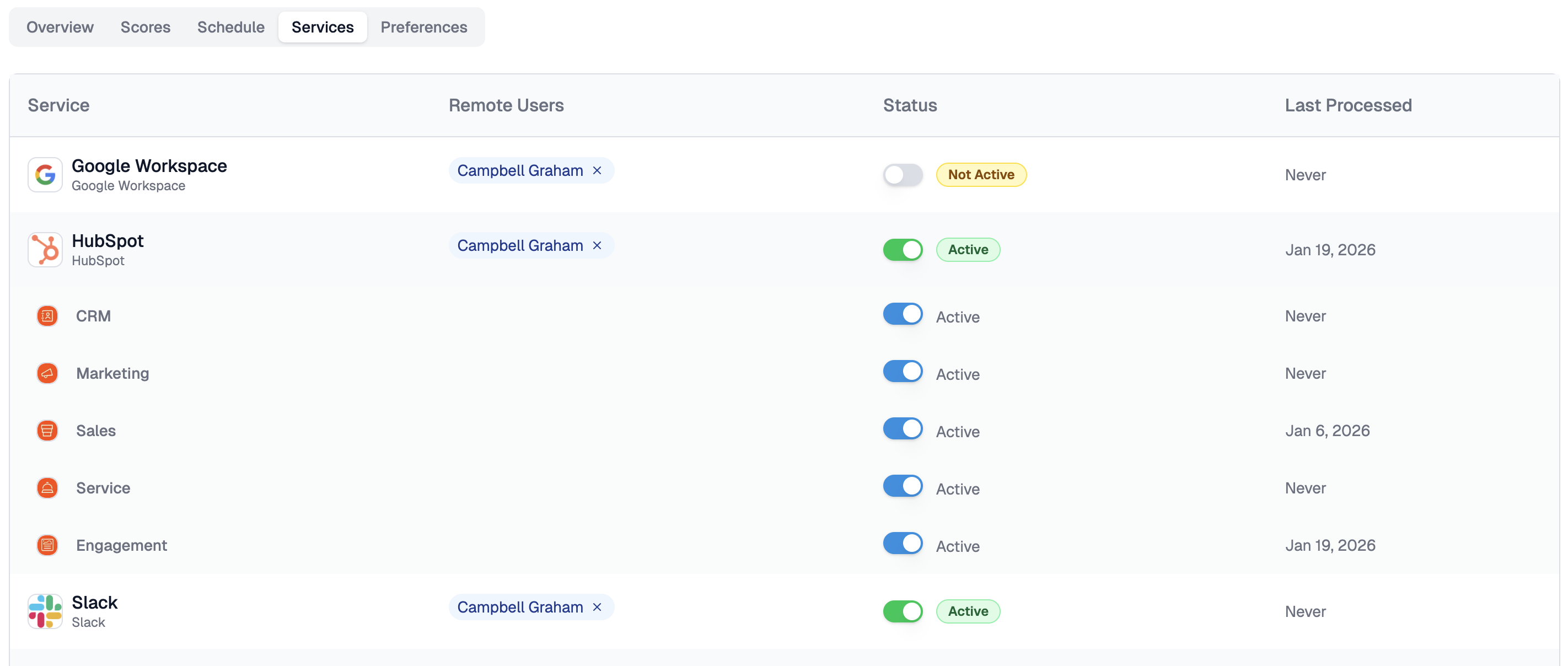
The Services tab shows which integrations are connected for you specifically: the external platforms WorkSights is processing activity from on your behalf.
Each row shows the service, the remote account linked to you from that platform, whether the service is currently active, and when WorkSights last processed data from it.
- Active - WorkSights is processing activity from this service for you.
- Inactive - WorkSights has stopped collecting new data from this service. Past activity remains visible.
Sub-services, such as individual HubSpot modules, appear below their parent service. Parent-level toggles control the entire integration. Feature-level toggles control individual data streams.
The Last Processed timestamp is the most useful indicator when activity looks incomplete. A stale or never-processed timestamp usually means a mapping issue or a connection that needs refreshing, not an absence of work.
Preferences Tab
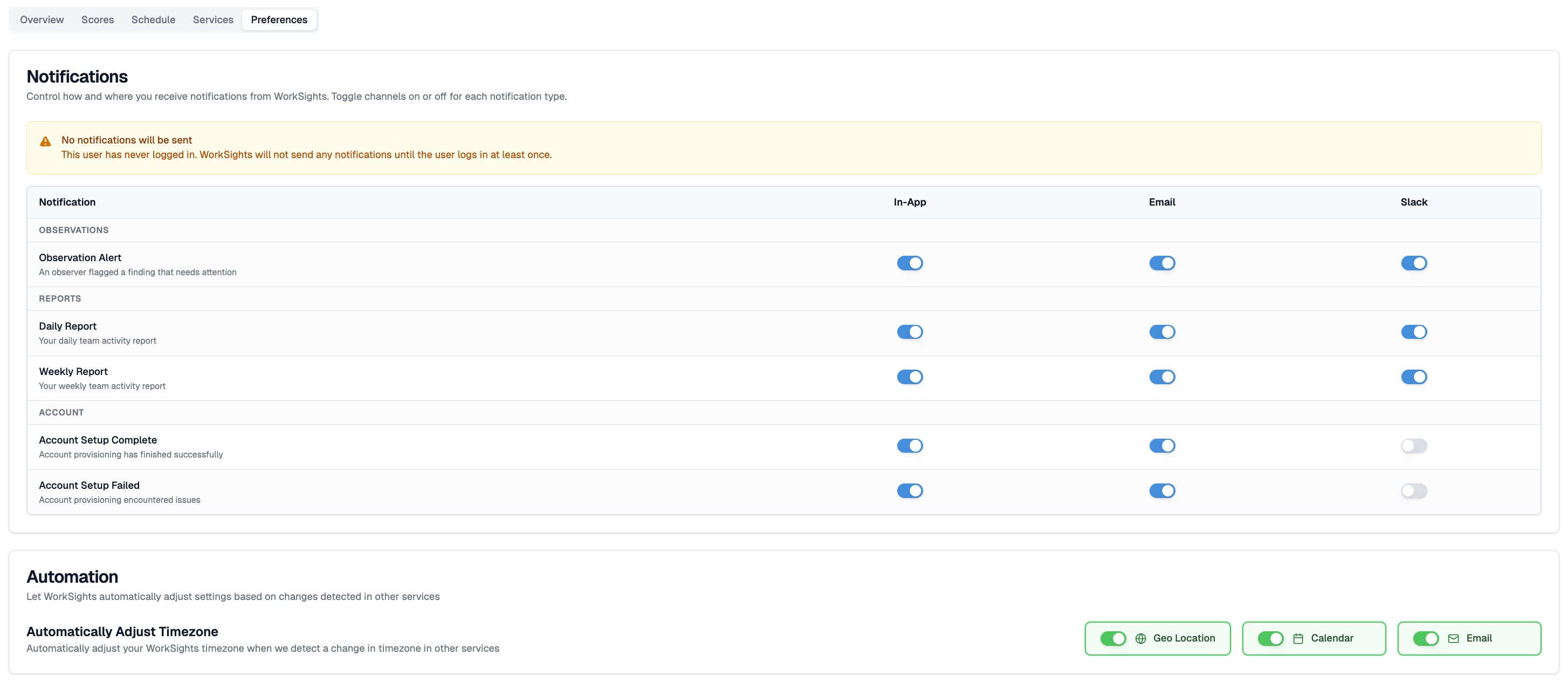
The Preferences tab has two sections: Notifications and Automation.
Notifications
The notifications matrix here mirrors the one in Settings, then Notifications. Toggle each notification type on or off across in-app, email, and Slack channels. Changes here apply only to you.
If you have never logged in, a warning will appear noting that WorkSights will not send notifications until you sign in at least once.
Automation
WorkSights can automatically adjust your timezone when it detects a change in your connected services. Three sources can trigger an update: your current IP address, your connected calendar, or email headers indicating your current region.
Keeping automatic timezone adjustment on is recommended if you travel frequently or work across multiple regions. It prevents activity from being attributed to the wrong day and keeps your estimates accurate.
Related Guides
AI Context - what to write and how it shapes your Insights and reports
Notification Settings - full detail on notification types and channels
Assign Manager Relationships - setting up reporting lines
Team List - managing your team's profiles from a single view