


Table of contents
Team List
The Team List is your central hub for managing everyone in your WorkSights account — their roles, manager relationships, categories, and access. Keeping this data accurate is one of the most impactful things you can do to get better Insights out of WorkSights. The Observers that watch your business, the reports that land in your inbox, and the AI Context that shapes them all depend on the people data you maintain here.
You can reach it from Team in the top navigation.
Finding and Filtering Users
The filter bar at the top lets you narrow the list by manager, role, category, timezone, access status, created date, or last login. Toggle Include inactive to surface deactivated users when you need to reference historical records. All filters work together so you can combine them to find exactly who you are looking for.

The Table
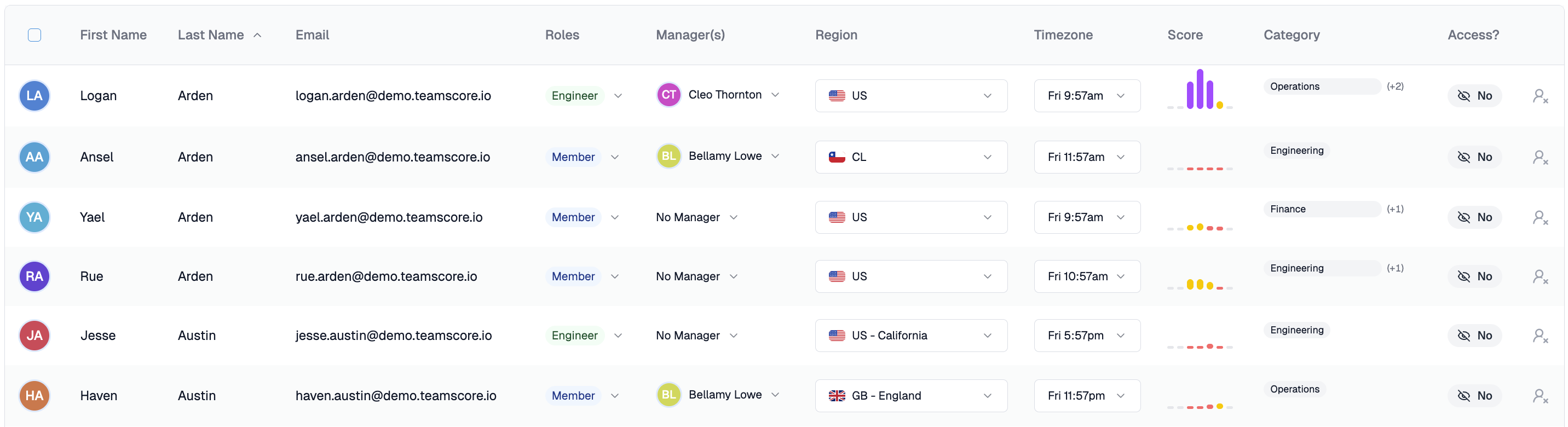
Each row represents one user. The table extends beyond the visible viewport at normal zoom — scroll right to see all columns.
Name and email are synced automatically from your connected directory. To change a name or email, update it in Google Workspace or Microsoft 365 and WorkSights will reflect it automatically. Click a name to open that person's full profile in Personal Settings.
Roles define what a user can see and manage inside WorkSights. Click the role badge to change it inline. Multiple roles can apply to the same person.
Manager(s) shows who the person reports to. Click to update the assignment inline. Keeping manager relationships accurate ensures that daily reports reach the right people and that Observer findings are scoped correctly.
Region and timezone determine how WorkSights interprets a person's working day. Region controls which public holidays apply. Timezone ensures that activity timestamps align with when the person actually worked. For distributed teams, both fields matter more than they might seem — an incorrect timezone can shift an entire day's activity into the wrong date.
Score shows a small color-coded sparkline of the person's recent performance trend.
Category shows the person's assigned role category — for example, Engineering or Account Executive. If more than one category is assigned, the primary is shown with a count of additional ones in brackets. Categories determine which Observers watch this person and how WorkSights contextualizes their activity in reports and findings.
Access shows whether the person can currently log in. A crossed eye icon means access is disabled.
Access vs Roles vs Deactivation
These three controls are distinct and worth understanding clearly.
Roles control what a user can see and do inside the product.
Access controls whether they can log in at all, independently of their role. Disabling access for someone on extended leave preserves their data and role, they just cannot sign in.
Deactivation removes a user from the account entirely. Deactivated users are hidden from dashboards and excluded from billing. Use this when someone has left the organization.
Editing Inline
Roles and manager relationships can be changed directly in the table without opening a user's profile. For more detailed changes (schedules, services, categories, and AI Context) click the person's name to open their Personal Settings page.
Related Guides
Personal Settings — full profile, schedule, services, and AI Context
AI Context — how categories and user context shape Observer findings
Assign Manager Relationships — setting up reporting lines across your team