


Table of contents
Harvest Integration Overview
The Harvest integration brings time entry data into WorkSights as Time Log activities, placing your team’s logged hours in the daily timeline alongside activity from your other connected tools.
For agencies, Harvest is already how time gets tracked. Connecting it means that work is analyzed in WorkSights the same day it happens, with no new tools, no workflow changes, and no additional data entry from your team.
For connection steps, see Harvest Setup.
What WorkSights Receives
Time entries
Each logged time entry appears as a Time Log activity in WorkSights. The activity title follows the Harvest hierarchy: Client → Project → Task → Time Log. Duration is displayed in minutes. For billable entries, the billable flag is captured alongside it.
Harvest requires a task on every time entry, so all activities show the full four-level hierarchy.
Activity appears in WorkSights automatically as your team logs time throughout the day. Only activity logged after the integration is connected will appear. Deleted time entries are not removed from WorkSights. If an entry is deleted in Harvest, the corresponding activity remains.
Notes
If a note is added to a time entry in Harvest, the text appears in the activity detail field in WorkSights.
Users
WorkSights imports Harvest team members and matches them to WorkSights users by email address. Users whose emails do not match require manual mapping from the Users tab.
WorkSights does not ingest expenses, invoices, or estimates.
How Harvest Activity Appears
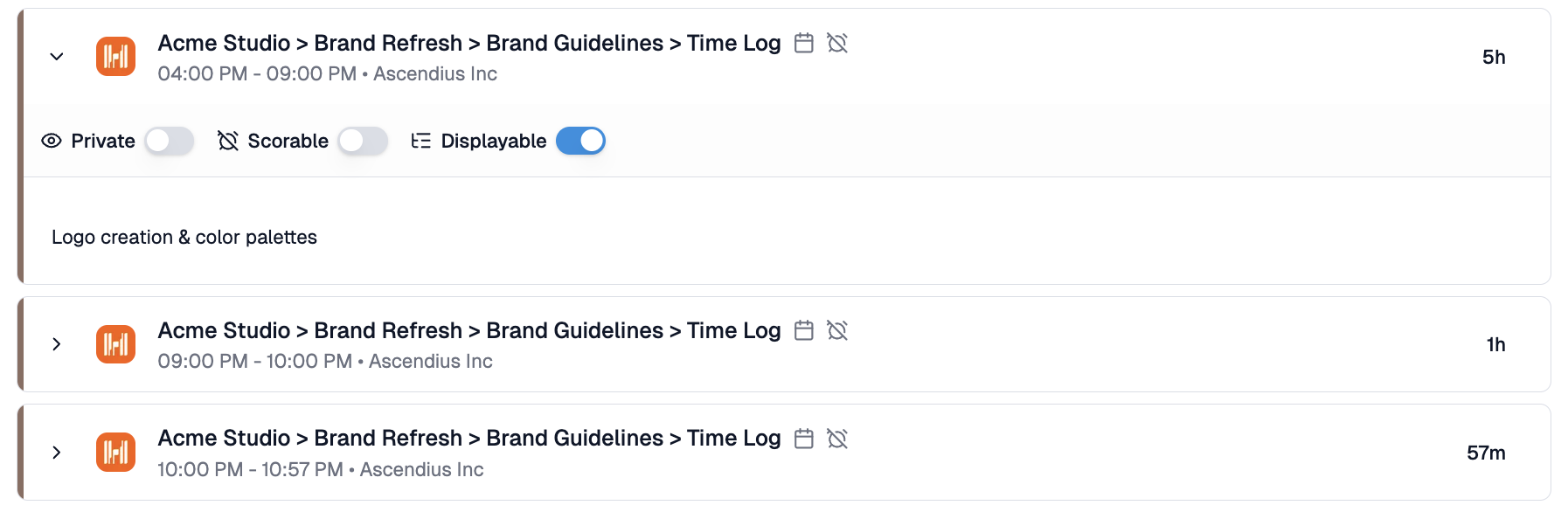
Harvest time entries appear on the activity timeline as Time Log activities. Each entry shows the start and end time, duration in minutes, and the full title hierarchy: Client → Project → Task → Time Log.
Time Log is a passive activity type. Harvest entries are displayable by default and not scored, which means they contribute context to the daily picture without affecting performance calculations. Scorable can be toggled manually per entry if needed.
About Timestamps
Harvest handles timestamps differently depending on how your team logs time.
With start and end times enabled: WorkSights uses them directly. Times are converted from the user's Harvest timezone and displayed in the viewer's local timezone in WorkSights. This is the most accurate mode.
Without start and end times: WorkSights infers the end time from when the entry was submitted and calculates start by subtracting the duration. A 90-minute entry submitted at 4:00 PM appears in WorkSights as 2:30 PM to 4:00 PM.
Regardless of which mode your team uses, the date on every activity always reflects the day the work was done, not the day it was submitted. If someone files four days of timesheets on Friday, each entry will show the correct date. The time of day within those dates will reflect when the entries were submitted if start and end times are not enabled, since Harvest does not capture that detail without them.
To enable start and end times in Harvest, go to Settings → Preferences → Timer mode → Track time by start and end time.
Integration Page Overview
The Harvest integration page contains three tabs:
- Overview: connection status and integration owner
- Users: Harvest team members mapped to WorkSights users
- Connections: connected Harvest accounts
Data Access and Privacy
WorkSights accesses Harvest through OAuth authorization. The integration is read-only.
WorkSights receives:
- Time entry duration, date, and billable flag
- Client, project, and task names used to build the activity title
- Notes from the time entry notes field
WorkSights does not receive:
- Expenses, invoices, or estimates
- Financial or billing data
- Any content beyond time tracking metadata
Troubleshooting
If Harvest activity is not appearing:
- Confirm the affected user is mapped in the Users tab. WorkSights matches Harvest users by email. If the email in Harvest differs from the email in WorkSights, the user will not be mapped automatically and will need to be matched manually.
- Check whether the timer is still running in Harvest. Active timers are skipped and picked up automatically once stopped.
- If you have just logged an entry, give it up to an hour to appear. WorkSights syncs Harvest on a regular cycle throughout the day.
If duplicate activities are appearing:
- Check the Connections tab on the Harvest integration page. If more than one Harvest account is connected, entries may be ingested twice. Use the active/inactive toggle to disable the duplicate connection rather than removing it. Deleting a connection removes all associated activity history.
If times shown look incorrect:
- Check the user's timezone setting in their Harvest profile. If it does not match their actual timezone, times will convert incorrectly.
- If your team logs duration only without start and end times, times in WorkSights are inferred from when the entry was submitted. See the Timestamps section above.
If a deleted Harvest entry is still showing:
- This is expected. WorkSights does not sync deletions from Harvest. The activity will remain but will not affect scoring.