


Table of contents
Service Details
Service Details gives you a complete picture of how a connected integration is operating inside WorkSights: who owns it, which users are mapped, which features are active, and whether the connection is healthy. It is the place to go when you need to diagnose missing activity, manage user mapping, or refresh a broken connection.
You can reach it from Settings in the top navigation, then Services, by clicking the chevron to expand a service and then clicking the service name.
Overview Tab
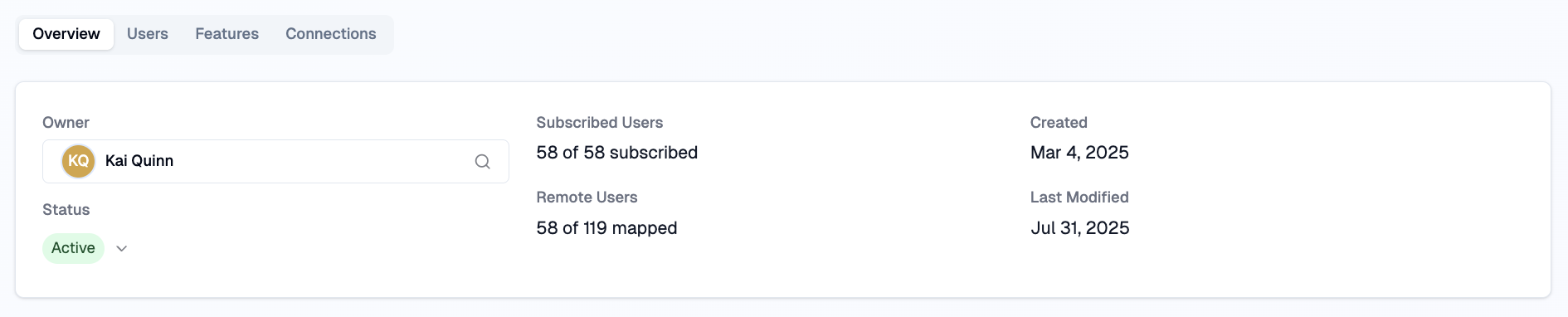
The Overview tab gives you the high-level status of the integration at a glance.
- Owner - the user responsible for maintaining authentication and configuration. Use the search icon to reassign if needed.
- Status - whether the service is active or requires attention. An inactive service means WorkSights has stopped processing activity from it.
- Subscribed Users - how many WorkSights users are actively linked to this service with ingestion enabled. For example, 58 of 58 subscribed means all mapped users are contributing activity.
- Remote Users - how many remote identities WorkSights has detected and how many have been matched to WorkSights users. For example, 58 of 119 mapped means WorkSights found 119 external accounts and matched 58 to people in your workspace. A lower-than-expected number here usually means some users need manual mapping.
- Created / Last Modified - when the connection was set up and last updated.
Renaming a service
WorkSights uses the service name by default, but you can rename it when you manage multiple connections to the same service, for example different domains, a test and production environment, or to match your internal naming conventions.
To rename, hover over the service name and click the pencil icon, type the new name, and press Enter to save. Renaming never affects the integration or sync itself. Members cannot rename services.
Features panel
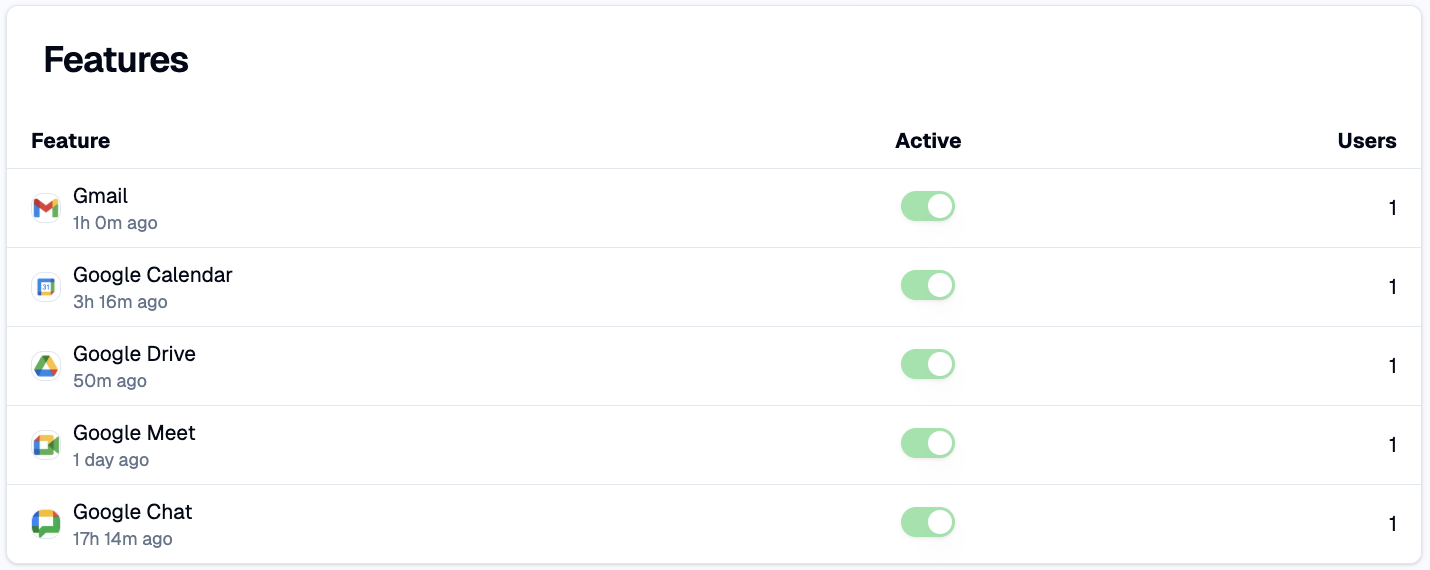
Some services, particularly Google Workspace and Microsoft 365, include multiple built-in components such as Gmail, Calendar, Drive, Meet, Teams, and SharePoint. These appear as features under the parent service and are managed here.
Features do not require separate authentication. Once the parent service is connected, WorkSights recognises and processes each feature automatically. You can enable or disable individual features depending on your organisation's needs. For example, if your team uses Slack instead of Google Chat, you might disable Google Chat. Disabling a feature stops future ingestion but does not delete historical data.
Connections panel
This panel shows the active authorisations between WorkSights and the external service. See the Connections tab for full detail.
Users Tab
The Users tab shows how your team's identities in the external service are linked to their WorkSights profiles. It is the first place to check when a user's activity looks incomplete or missing.
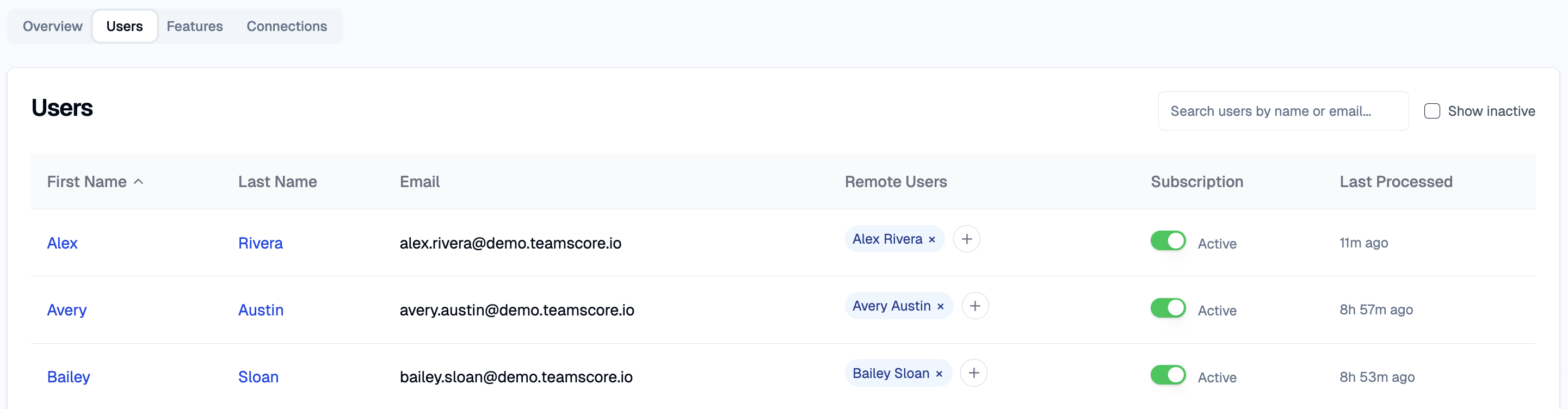
Each row represents a WorkSights user. The columns show:
- Name and Email - pulled from the user's WorkSights profile. Read-only. Helps you identify the correct person when multiple domains are in play.
- Remote Users - the external accounts linked to this WorkSights user. A user can have more than one remote account, for example a primary domain account and a shared billing inbox. Each remote account can only belong to one WorkSights user at a time. Accounts already assigned to someone else appear crossed out and cannot be selected. Click the + button to add a remote account from the imported list.

- Subscription - whether WorkSights is actively processing data from this service for this user. Toggle off to pause ingestion without removing the mapping. Historical data is preserved either way.
- Last Processed - when WorkSights last received data from this user for this service. A stale or never-processed timestamp is usually the first indicator of a mapping or connection issue, not a reflection of how much work the person has done.
How mapping works
WorkSights uses email-based identity matching to link external activity to the right person. Most integrations resolve cleanly, but exceptions are common: contractors with multiple email addresses, organisations with different email formats across domains, or services like GitHub where email visibility is restricted. The Users tab gives you a single place to confirm and correct these links.
Managing Subscriptions
Once a user is mapped, toggle their subscription on to begin collecting activity.
- New employee - toggle on to start collecting activity from day one.
- Extended leave - keep the mapping but toggle subscription off to pause ingestion.
- Shared mailbox or service account - only subscribe the person who owns and uses the account.
Toggling off does not remove the mapping. It pauses processing until you turn it back on. When the Users tab is configured correctly, WorkSights knows exactly whose work it is reading and which activities should count toward their record.
Features Tab
The Features tab gives you granular control over which activity streams flow into WorkSights for each user. Many integrations are not single data sources but collections of sub-services. Gmail, Calendar, Drive, Meet, and Chat are all features of Google Workspace. Teams Call and Teams Chat are features of Microsoft 365.
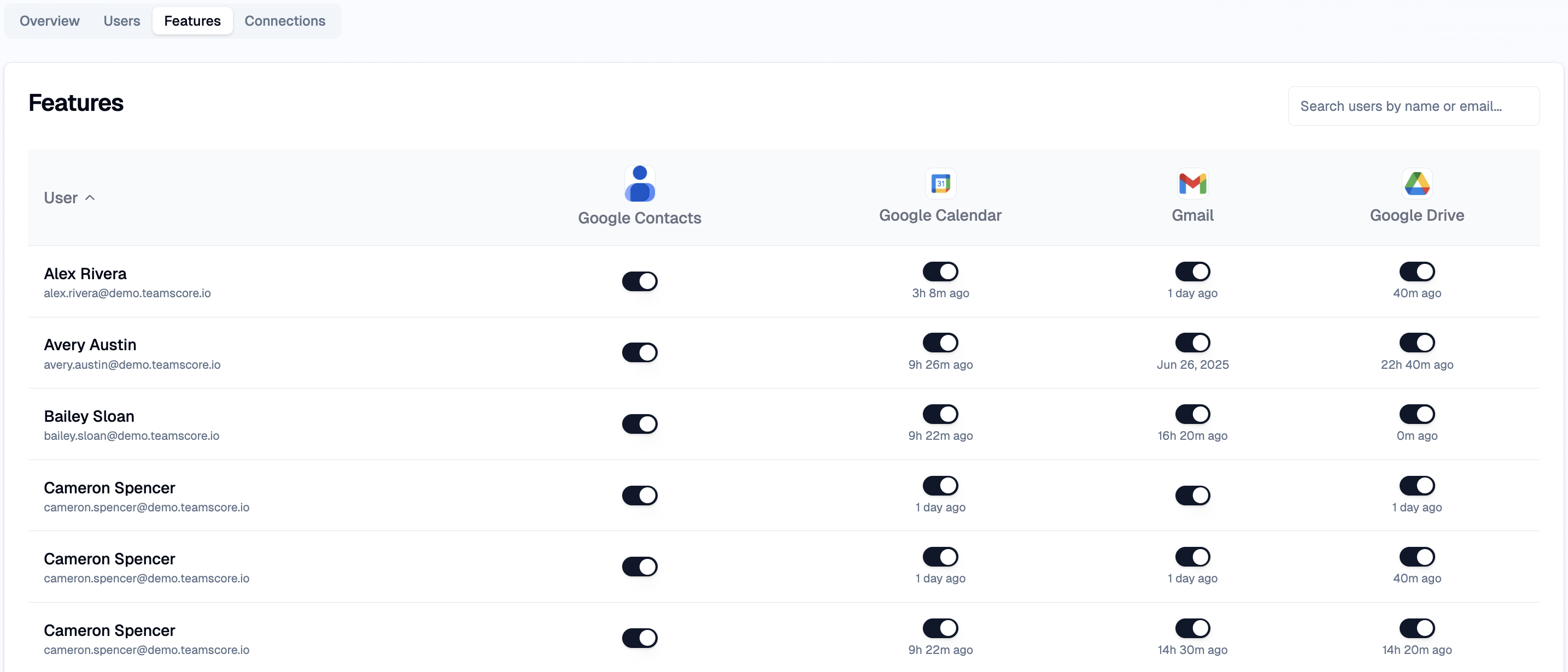
The tab shows a matrix of your mapped users against the available features. Each intersection tells you whether the feature is enabled for that user and when WorkSights last processed activity from it.
Controlling what WorkSights sees
Turning a feature off means WorkSights will ignore everything from that stream for that user going forward. WorkSights will still receive the data from the external service, but it will not store or display it anywhere. The change is precise and reversible: turning the feature back on resumes normal processing immediately.
This is useful when activity should remain private, for example for legal teams, HR-sensitive work, or situations where the feature is simply not relevant to how a person works.
Leaving features enabled is generally the right default. WorkSights only processes data that actually exists. If a user does not use Google Chat or Zoom, those features stay silent without generating noise or clutter. There is no downside to leaving them on.
Connections Tab
The Connections tab shows the live authorisations WorkSights holds for this service: the specific OAuth grants that allow it to read activity, sync users, and maintain access over time.
Most services only need one connection, but WorkSights supports multiple. This matters when an integration owner leaves the organisation, when permissions change, or when you want a backup connection to prevent interruption. WorkSights handles multiple connections intelligently and prevents duplicate activity imports by merging data using underlying unique identifiers.

Each row shows the connection owner, when it was created, when it was last refreshed, and whether it is currently active.
Refresh Connection
The Refresh Connection button on the right of each connection row does two things: it re-validates the OAuth token with the external service, and it triggers a fresh import of remote users from that service into WorkSights. It is both a permission refresh and a user re-import in one step.
Use it when a connection appears broken, when a token has expired, or when new users added in the external service are not yet appearing in WorkSights. An admin with access to the original service account must perform the refresh.
Related Guides
Connected Services - an overview of all integrations and how to connect new ones
Connecting Google Workspace - connecting your Google environment
Connecting Microsoft 365 - connecting your Microsoft environment
Team List - managing users and their roles across your account