


Table of contents
Activity Scores
The Scores view gives leaders a day-by-day picture of how work flowed across their team. It translates activity signals from your connected tools into a single reference point for each person and for the team as a whole, helping you notice patterns, spot quiet days worth a conversation, and understand how your organization moves through its work.
Scores are activity estimates, not performance ratings. They reflect how consistently someone engaged across their connected tools during their working hours. They do not measure output, quality, or effort, and they do not capture anything a person did not already share through the tools your organization uses every day.
You can reach it from Activities in the top navigation, then select Scores.
Who Can See Scores
Score visibility is set under Account → Overview → Score Visibility:
- Everyone - scores are available for people the viewer already has permission to see.
- Executives and Managers - scores are available to those roles within their existing visibility.
- Executives Only - scores are available to Executives.
- Disabled - scores are hidden.
Technical Admin access alone is treated like Member access for score visibility. Selecting Everyone does not give Members access to other people’s activity. Managers see people below them in the reporting hierarchy; Executives see across the account.
This setting changes score visibility. It does not stop score calculation or change reporting relationships.
Team Score
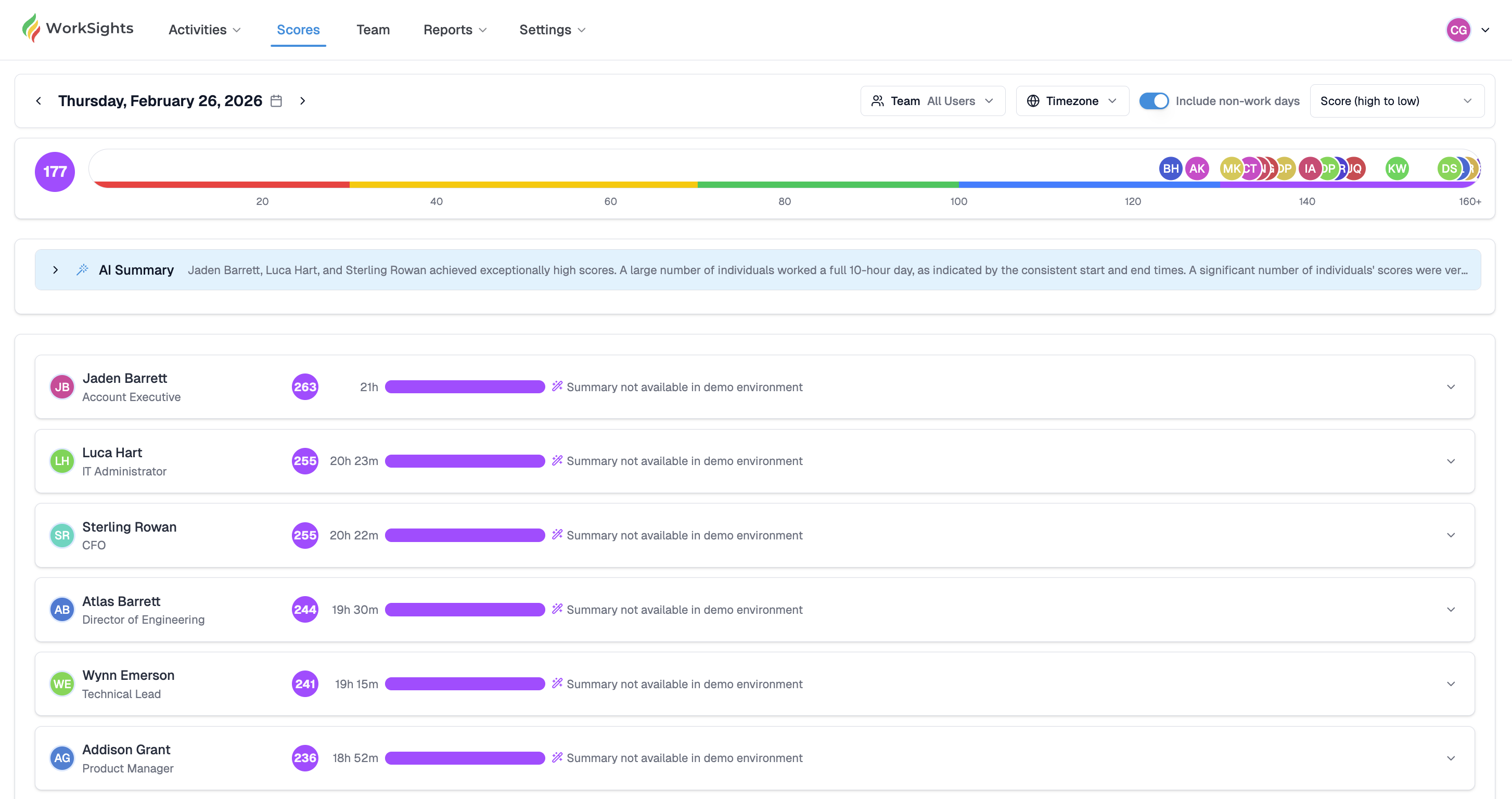
At the top of the page, the colored bar shows your Team Score for the selected date. It brings together individual activity estimates into a single picture of how active the organization was that day.
The bar uses a color scale to give you a quick read on where the day landed relative to typical activity levels.
- Red - very light activity, or connected services may not have sent data for this period
- Yellow - below typical activity levels but present
- Green - activity in line with a normal working day
- Blue - above typical activity levels, often reflecting extended collaboration or a busy period
- Purple - sustained high activity across the day
Color thresholds are relative to your organization's typical patterns, not a universal standard. A green day for one team may look different from another.
AI Summary
Below the Team Score, WorkSights provides an AI-generated summary of notable patterns for the day. This might include people with unusually high or low activity, groups who followed similar working patterns, or significant shifts from the norm such as an unusually early start across the team.
The summary gives you an immediate sense of how the day unfolded without having to read through every individual row.
Individual Scores
Each person's activity estimate appears as its own card showing their name and role, their estimate for the day, total hours represented by their activity signals, a color indicator, and an AI-generated daily summary where available.
The per-person summary is a short narrative description of how the day looked in aggregate. For example: "Started work around 8:45 AM with early activity in the repository. Exchanged emails with internal and external contacts throughout the morning and continued collaborating on a shared document into the evening."
Summaries describe when someone's active period started and ended, the main clusters of collaboration, and which tools saw the most use. They do not reveal message content, file content, or any personal information beyond what the activity signals themselves contain.
Viewing Options
Several controls let you adjust how you see the day.
- Team / Individuals - switch between the aggregate view and the per-person list
- Timezone - align the view across regions if your team is distributed
- Include non-work days - toggle whether weekends or recognized off-days appear
- Sort - order the list by estimate, name, or role
How Scores Update
Activity estimates refresh automatically throughout the day as your connected services finish sending their data, and again as WorkSights periodically reprocesses the day's activity. Estimates for a given date typically settle into their full-day picture within a few hours of the day ending.
If an estimate looks unexpectedly low, it is worth checking whether the relevant integrations are connected and sending data correctly before drawing any conclusions.
Reading the Numbers
Activity estimates are a starting point for questions, not a finishing point for conclusions. A green day suggests typical engagement across tools. A blue day often reflects a busy period or extended collaboration. A red day usually means a connected service did not send data, the person was not working, or they are not yet fully set up in WorkSights.
What the numbers do not tell you is why. A quiet day in the tools might mean someone was heads-down in focused work, traveling, unwell, or simply working in ways that your connected services do not capture. Scores are most useful as a prompt for a conversation, not a substitute for one.
Related Guides
Activity Dashboard - day-by-day activity timelines across your team
Activity Detail - a full breakdown of one person's activity on a specific date
Connected Services - checking integration status if estimates look incomplete
Notification Settings - control how WorkSights alerts you to significant patterns