


Table of contents
Login to WorkSights
WorkSights uses your organization's existing sign-in system — Google Workspace or Microsoft 365. This keeps authentication simple, secure, and compliant with the policies you already rely on.
How to Log In
Step 1: Go to WorkSights.ai
Step 2: Click Login
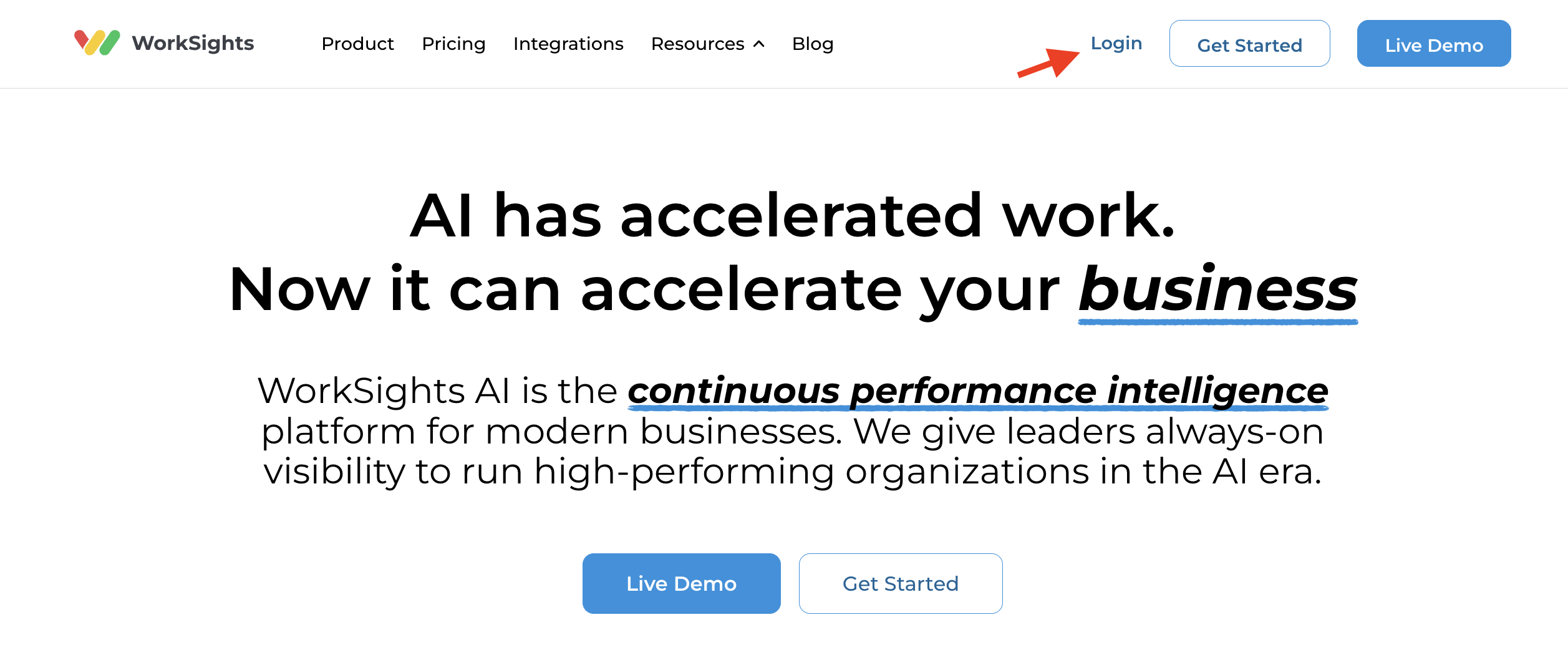
You will be redirected to the app login page.
Step 3: Select your Provider

Choose your provider: Google Workspace or Microsoft 365. Select the option your company uses.
Step 4: Complete the Sign-in Prompt
Use your work credentials. Once authenticated, you'll be returned to WorkSights automatically.
Login Requirements
WorkSights supports Google Workspace and Microsoft 365 accounts only. Standalone email and password accounts and third-party login methods are not supported.
This approach keeps your account security aligned with your organization's existing authentication policies.
If You Can’t Log in
- Make sure you are using your company's Google or Microsoft account, not a personal one.
- Ask your IT admin to confirm that your domain allows SSO access to WorkSights.
- Still locked out? Open the support chat from the Help option in the user menu and our team will assist you.
Password Management
WorkSights does not store or manage passwords. If you need to reset your credentials, use your company's standard Google Workspace or Microsoft 365 password reset process. Once your identity provider updates your password, you can sign in to WorkSights immediately.
Related Guides
Account Setup - defining company details after authentication is complete
Add and Manage Users - importing your team and assigning roles
Connected Services - managing integrations after initial setup is complete